

How to Get the Most out of Your Reports
- Take the time to review your report whenever you receive a notification.
- Periodically spot-check by using Supplemental Searches.
- Keep your Visual Web Scan Profile up to date.
- Keep your contact information current.
When entering your name use the name are most likely to use online. For example, if your name is "Rebecca Smith" but everyone calls her "Becky", enter "Becky Smith".
And remember, if you are a parent running reports on your child, follow these important steps:
- Tell Your Child
- Tell Your Child
- Tell Your Child
Our hope is that our children lead sensible online lives and that we never have to find anything questionable or damaging. The best way to achieve this is to let our kids know that an adult is watching. In most aspects of child’s life - at school, at home, at a friend’s house - there is an adult present – someone to whom the child must answer for their behavior; this dynamic did not exist online until now. Student Inspector provides this deterrent effect, but only if you, the parent, let your kids know you are using it.
Please see the detailed information below about using your reports:
Getting Started and Setup
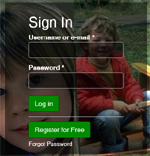
Log onto IISafety using your username and password.
-
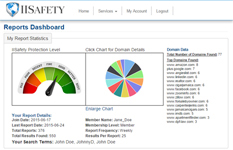
You will automatically land on your Reports Dashboard.
-
Click on the "View/Edit Profile Information" button. You will use this page to enter your information.

-
Please enter as much information about yourself as possible. The more information you enter the more comprehensive your reports will be.
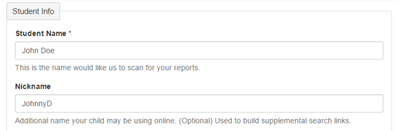
Tip: For best results you may want to try entering your full name and any nicknames he/she may have ex. Charles, Chuck, Charlie etc.
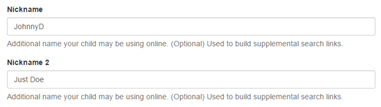
- Once you have entered the information please save.
-
You can click on the "Reports Dashboard" button to access your reports.

Viewing Reports
You will be notified via email when your IISafety Visual Web Scan Report has been generated.
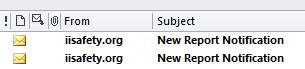
To access your report you will need to either click the link in the email or log on to IISafety and click the Member Login link. If you are already logged in, just click the View My Reports button.

Once you have logged in you will land you your Reports Dashboard.
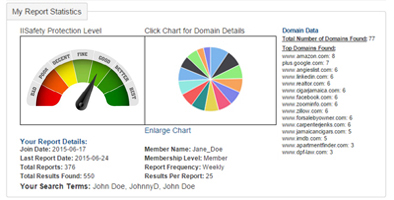
Your reports dashboard is broken into five sections: My Report Statistics, Scheduled Monitoring Reports, Advanced Scan & Analysis Reports, My Supplement Searches and My Report Settings.
My Report Statistics
Our Analytics and Charts section easily and visually depict the sites where we found information about you. Simply mouse over each section of the pie chart to see where you are most visible. You can also enlarge the chart for easy viewing. You will also see details about your reporting configuration and level of protection.
Scheduled Monitoring Reports
Click the gold button to view your report.
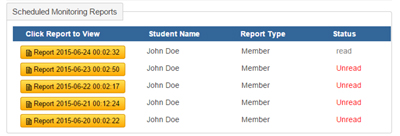
The title and description of the page are included for your convenience. While viewing your report you may also click on the thumbnail images and enlarge them for easier viewing. You can also click on the URL to visit the page.
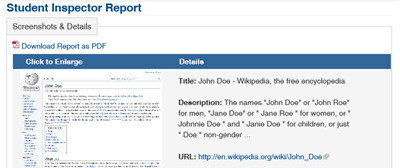
While you are viewing your report you can download a PDF version by simply clicking the Download Report as PDF link.
My Supplemental Searches
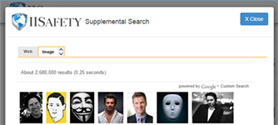
While our Visual Web Scan report is comprehensive, we have included the ability for you to do Supplemental Searches to help cover additional information that our report might have missed, and includes image searching. These Supplemental Searches automatically construct advanced query strings which will be used to search the world's most comprehensive indexing databases and report results to you immediately.
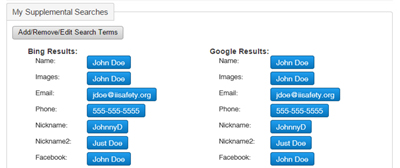
Simply click on any of the buttons in our Supplemental Search area and a pop window will open within our website that allows you to view the results of your search. Once you are finished with that search you simply close the window and click on another button.
By spending a few minutes to review your reports, you will be able to deal with any issues before they become a serious problem.